How to Format a Book with Affinity
Choosing the Trim Size
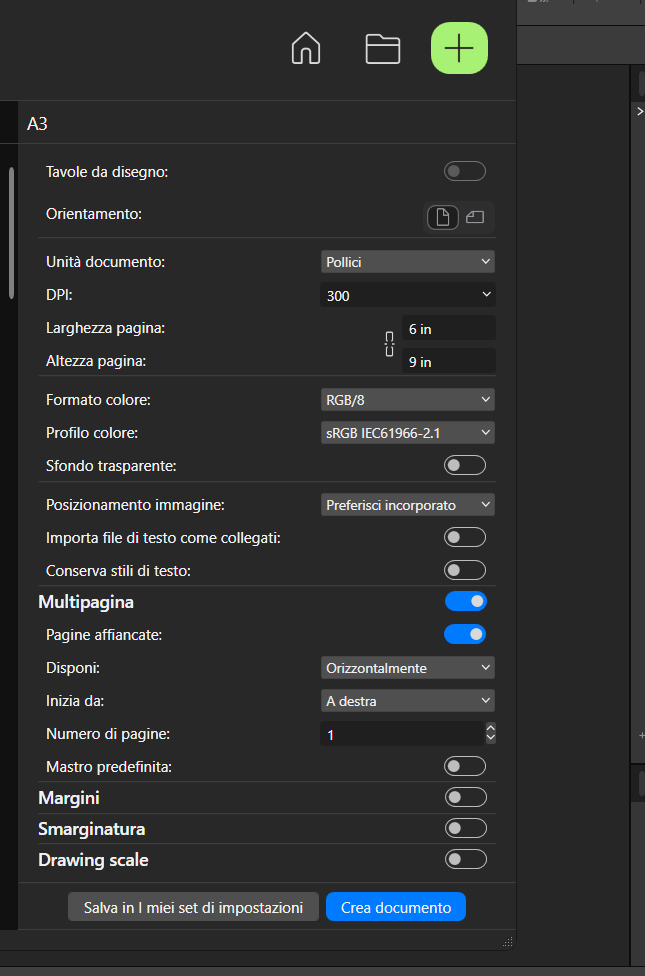
First, let's create a new document. Select File > New or use the keyboard shortcut Ctrl + N.
For this book, I've chosen one of the most common trim sizes for fiction on Amazon KDP: 6 × 9 inches (15.24 × 22.86 cm). Make sure to select the Facing Pages option so you can view pages side by side, just as they appear in an open book.
Setting Up the Margins
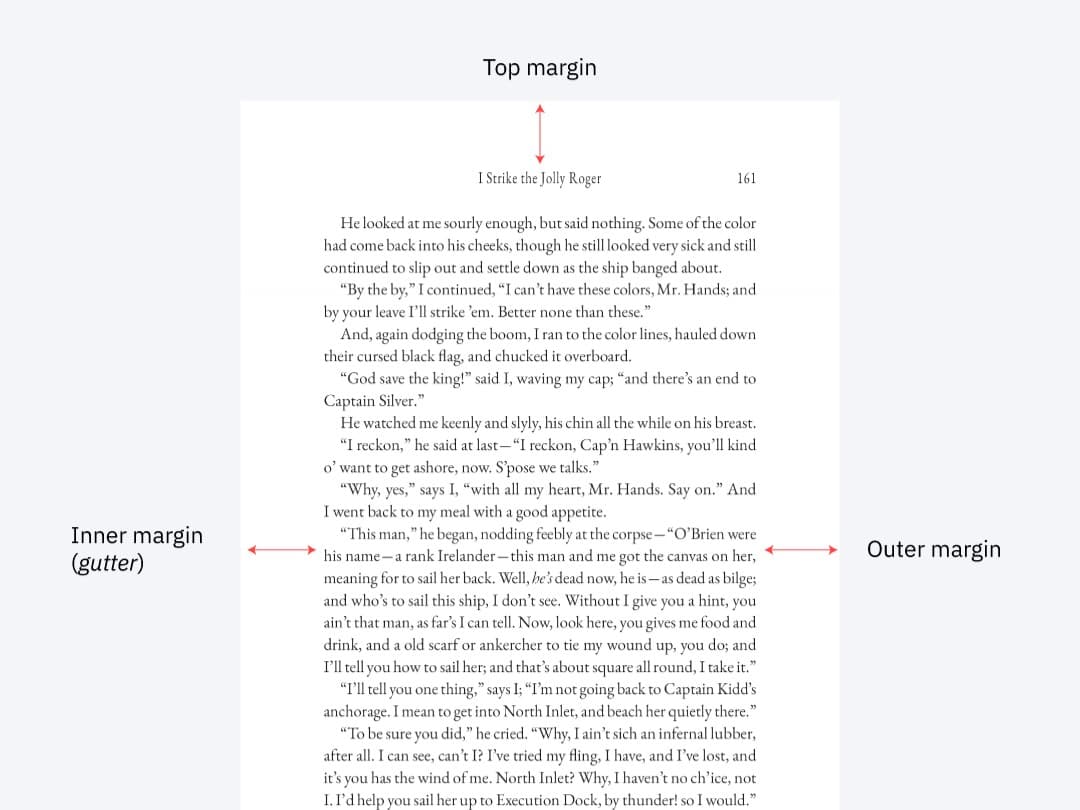
Margin selection is closely tied to the book's trim size. Margins define the type area, the portion of the page reserved for text.
Smaller trim sizes require particular attention to the width of the type area, as it directly affects readability. It's also important to consider line length. As a general guideline, aim for an average of 56–72 characters per line, including spaces. This is only a rough guideline and should be adjusted based on the typeface and type size.
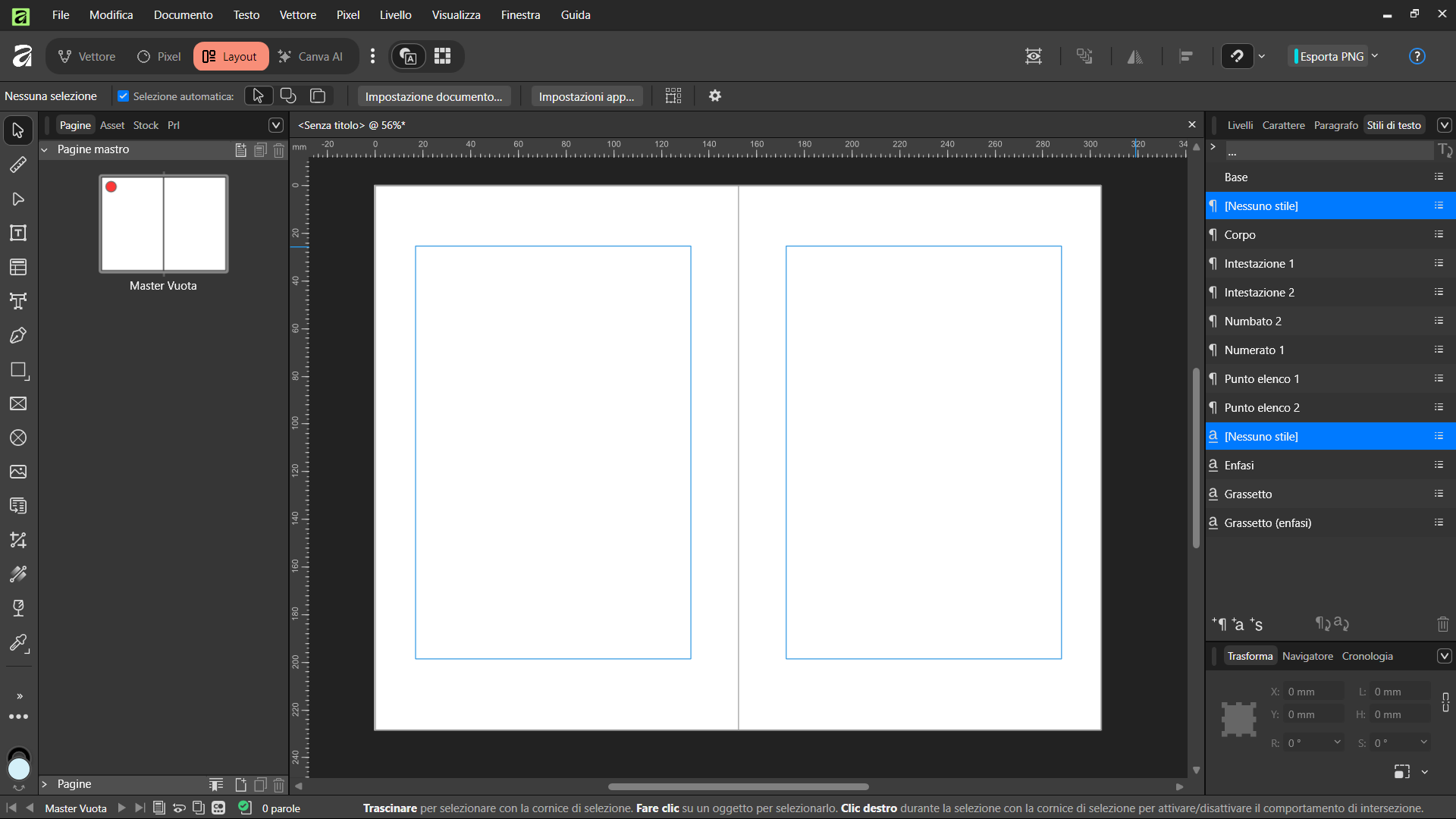
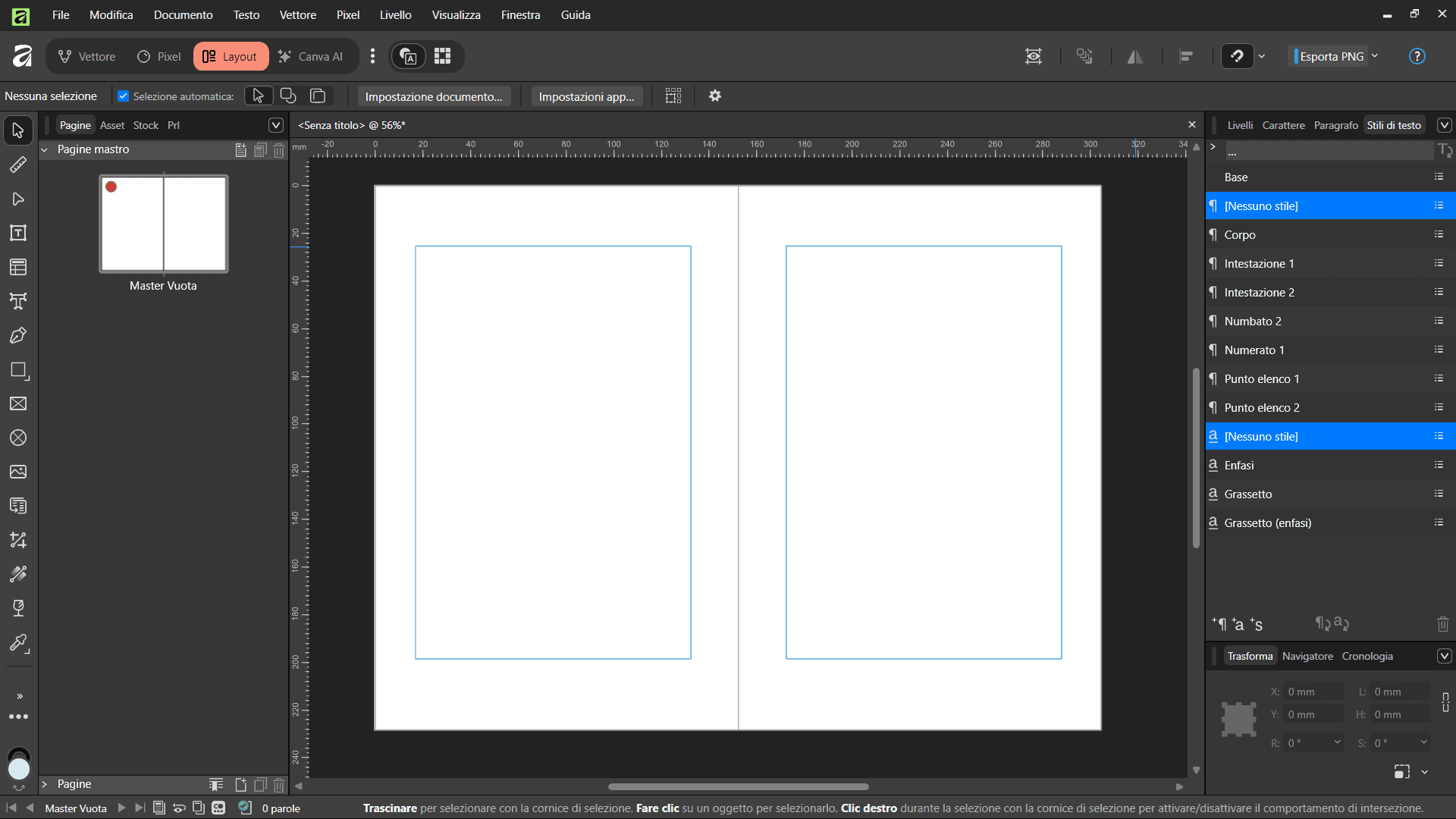
First, let's create a master page to help us maintain a consistent layout throughout the book.
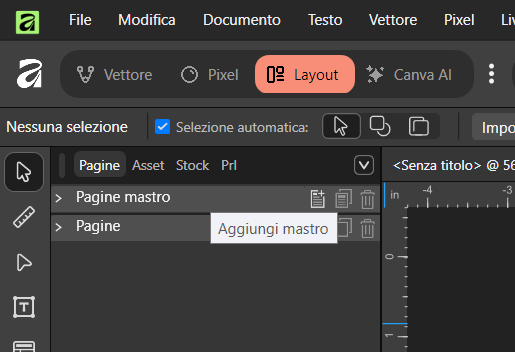
In the Pages panel on the left, click Add Master. We'll name it "Blank Master." We'll use it to define the margins and the type area for the main text.
Save the document, and let's move on to setting up our type area.
The Van de Graaf Canon
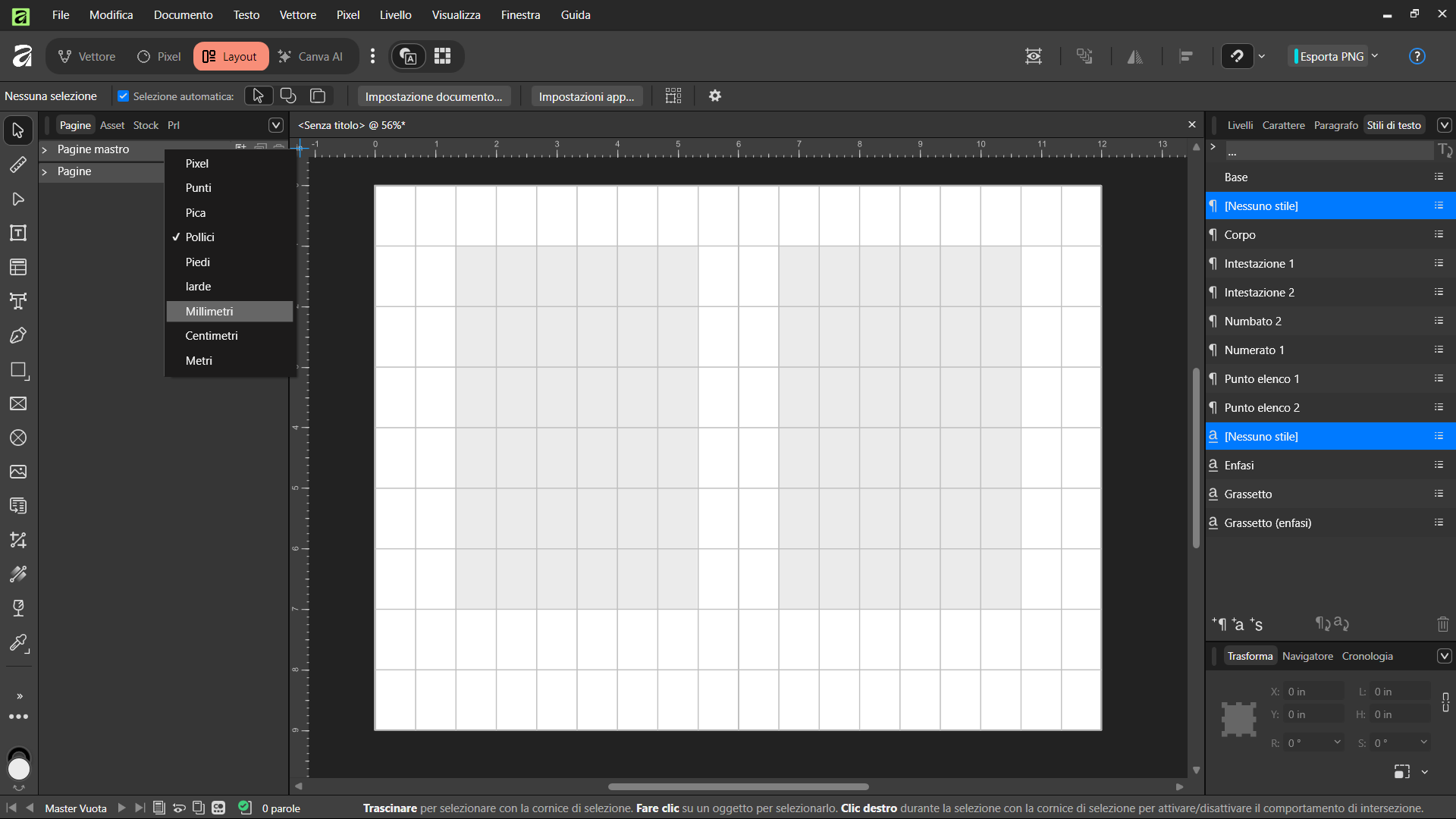
Go to View > Guides Manager and set up a grid with nine rows and nine columns, with no gutter. Then, enable the guide outlines.
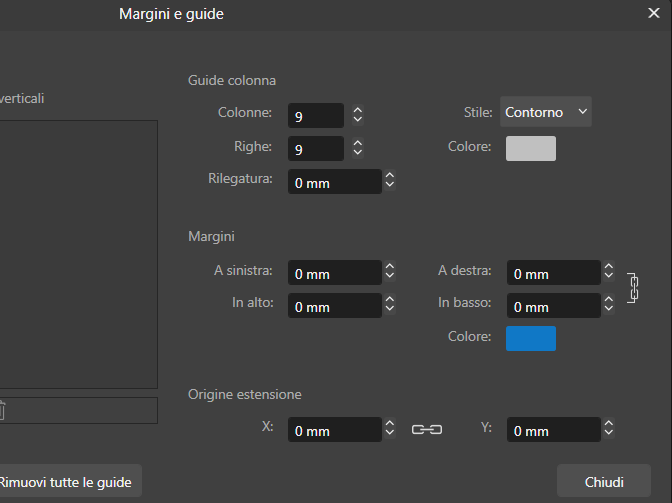
The Van de Graaf canon is a geometric system for constructing a book's type area, traditionally associated with the classical proportions of book design.
The page is divided into nine equal parts both horizontally and vertically. In the classic model, the top margin occupies one-ninth of the page height, while the bottom margin occupies two-ninths. Similarly, the inner margin occupies one-ninth of the page width, while the outer margin occupies two-ninths.
Here's what the resulting grid looks like.
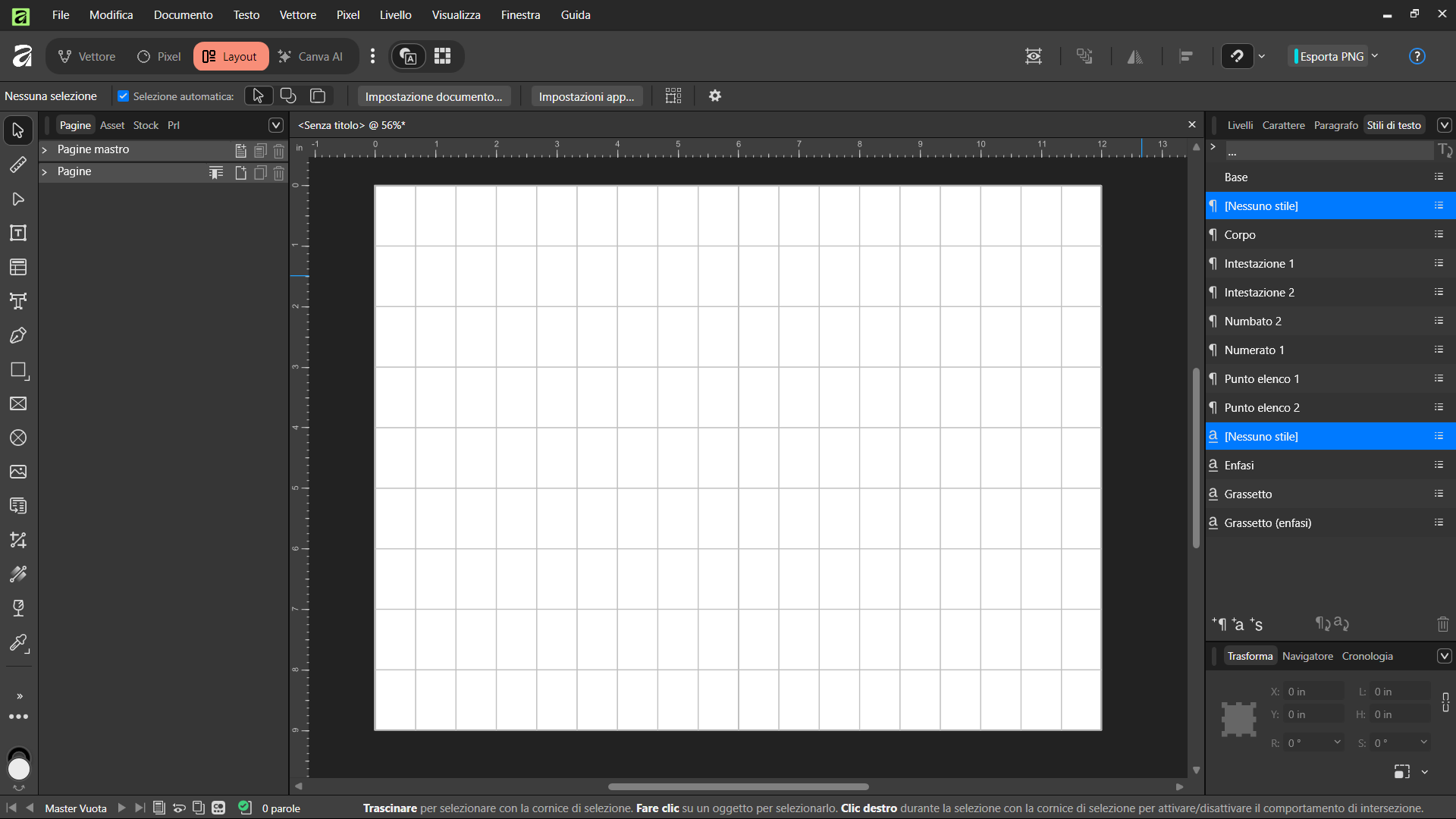
This system can be an excellent starting point if you want to give your book a classic look, with a relatively compact type area and generous margins. Its proportions recall those found in the medieval manuscript tradition and remain an interesting reference in editorial design.
For a contemporary fiction book, however, these margins may be too wide. We can use the canon as a starting point and adjust its proportions to achieve a layout closer to what we see in today's commercially published novels.
Adjusting the Margins
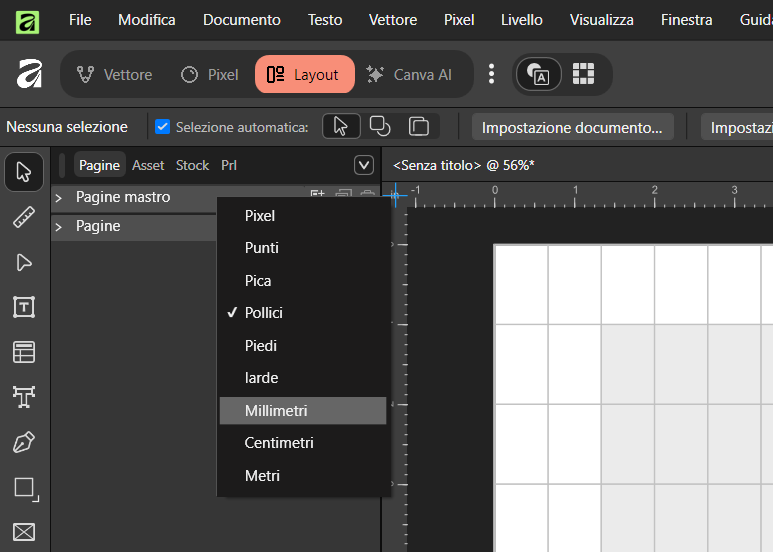
First, right-click the corner where the rulers meet and change the measurement units to millimeters.
We'll use rectangles to calculate our margin measurements based on the grid lines we've just created.
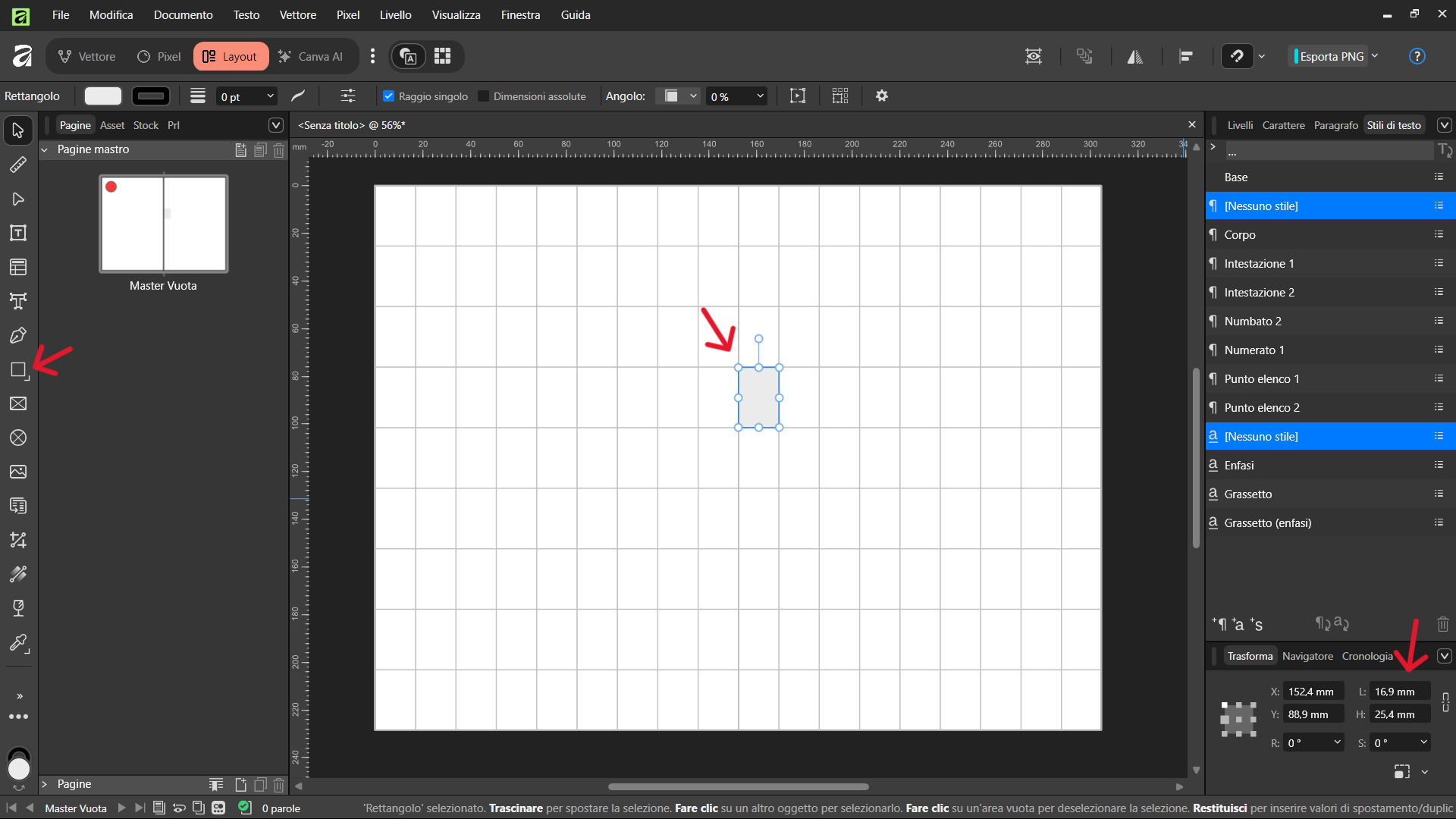
Draw a rectangle matching the dimensions of the inner margin defined by the canon. Start precisely at the center of the spread, where the two pages meet at the spine.
As you can see in the Transform panel, the inner margin measures approximately 16.9 mm.
Amazon KDP recommends taking the total page count into account because it affects the required inside margin. Before finalizing your measurements, it can be helpful to estimate the book's length in Word or whichever writing program you use. Set the document to your chosen trim size and apply formatting similar to what you expect to use in the finished book.
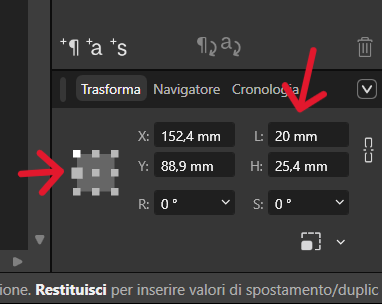
For our example, we'll increase the inside margin to 20 mm. Make sure to select the center-right reference point, as shown in the image.
To set the remaining margins, create a second rectangle using the grid lines as a reference. Start with the original margins defined by the canon, then move the rectangle to the right until its left edge aligns with the left edge of the smaller rectangle.
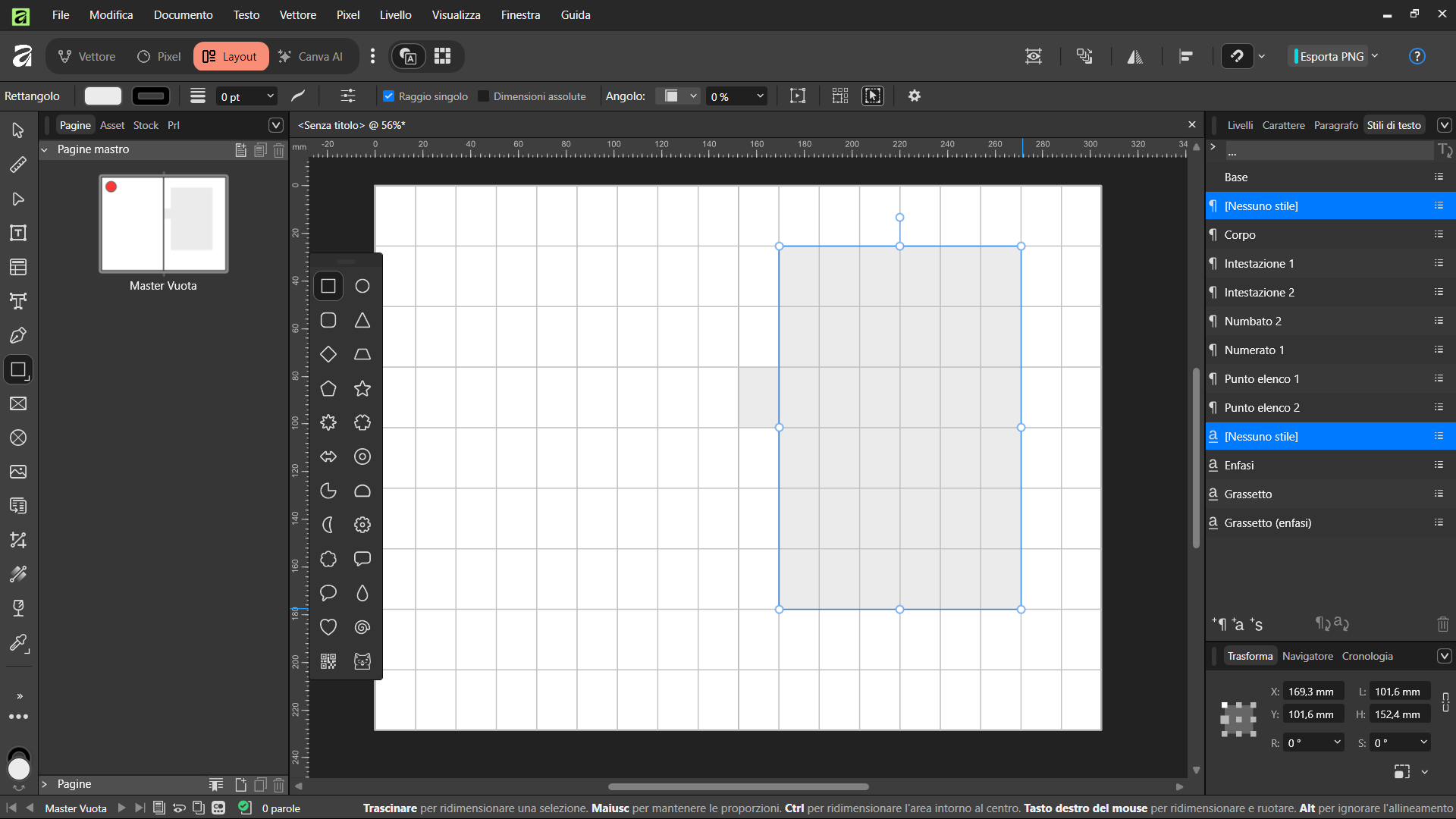
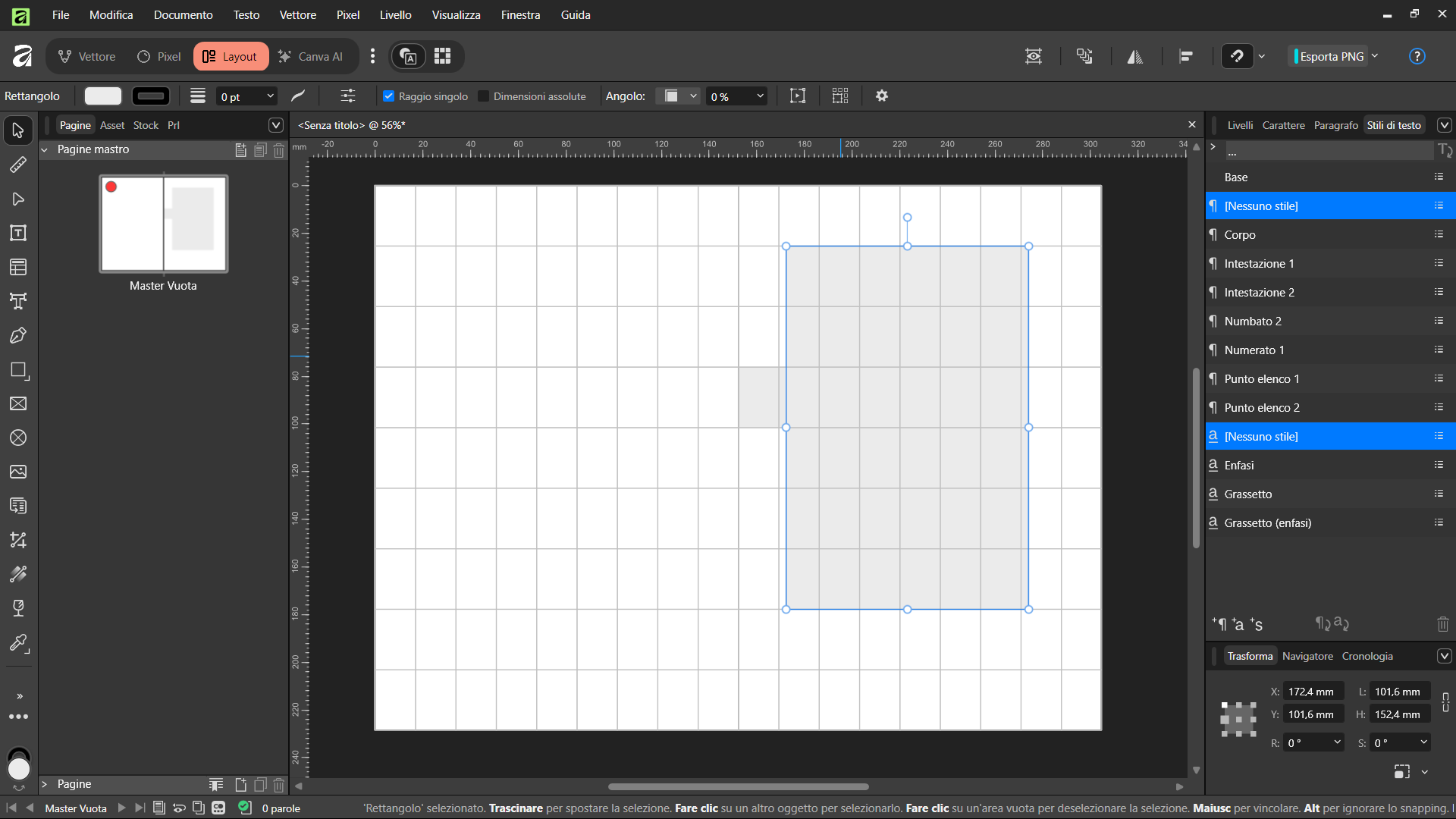
Next, widen the rectangle until it reaches the guide marking one-ninth of the outer margin, holding down Alt as you do so.
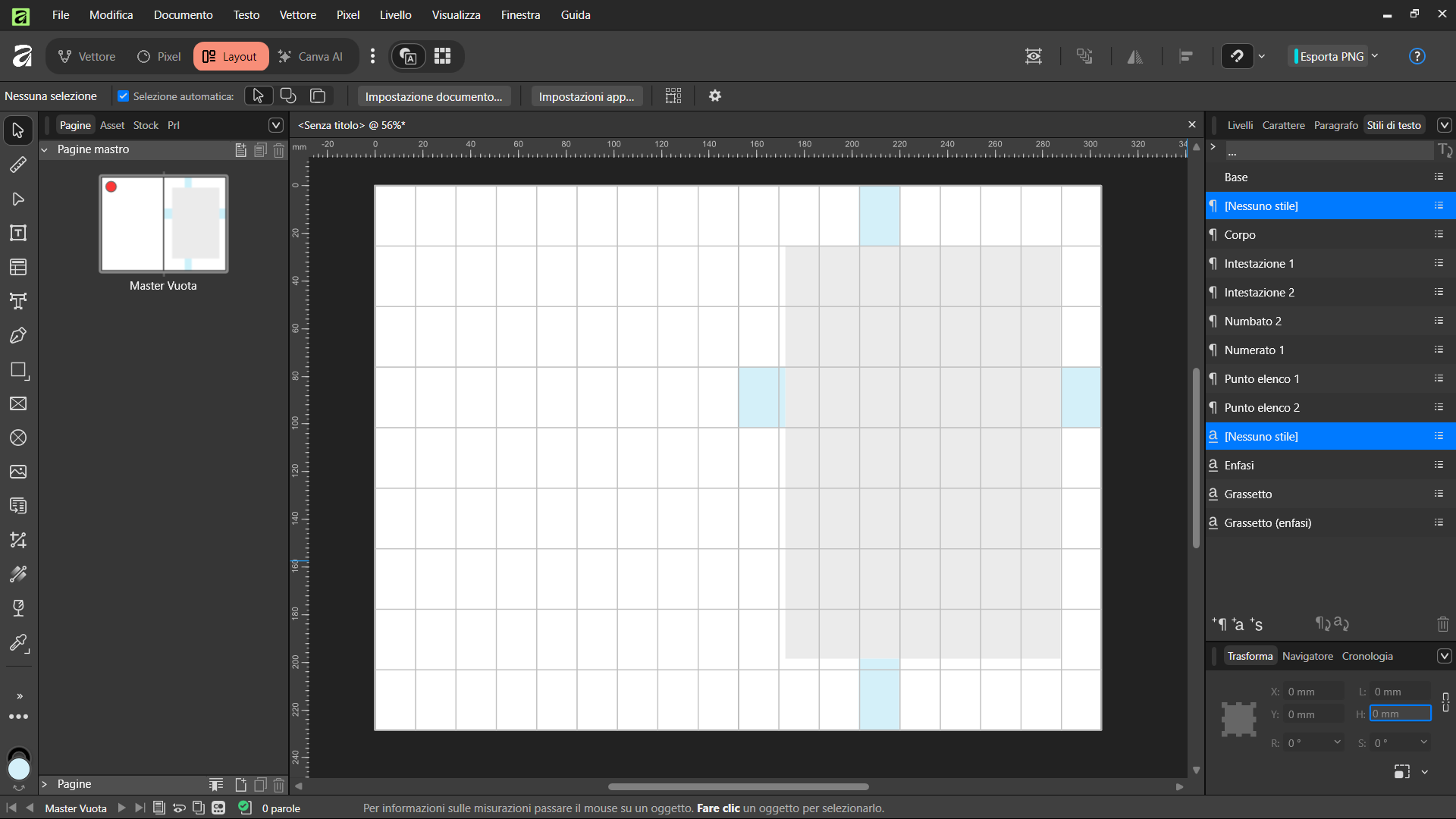
This allows us to determine the margin measurements we want to use for our book.
The resulting margins will be:
- Top margin: 25.4 mm
- Bottom margin: 30 mm
- Inside margin: 20 mm
- Outside margin: 16.9 mm
Now, open the master page we created earlier by double-clicking it. Go to View > Guides Manager and enter the measurements we've calculated.
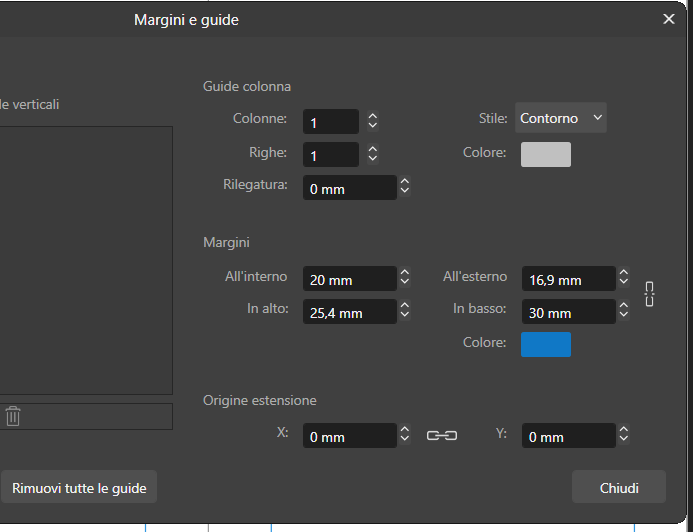
We've now adapted the Van de Graaf canon to the needs of our project, creating a wider type area suited to a contemporary fiction book.